
Here’s the step-by-step guide to create and set up the AI Subaccount.
Create an AI Subaccount
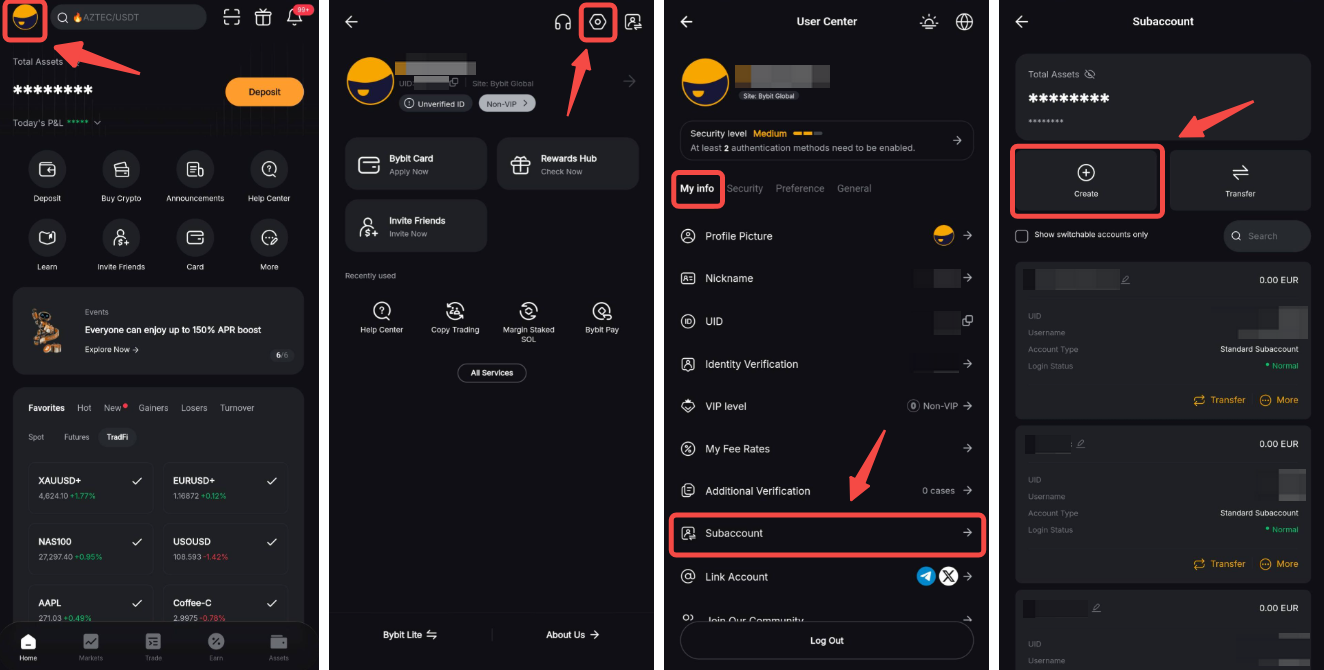
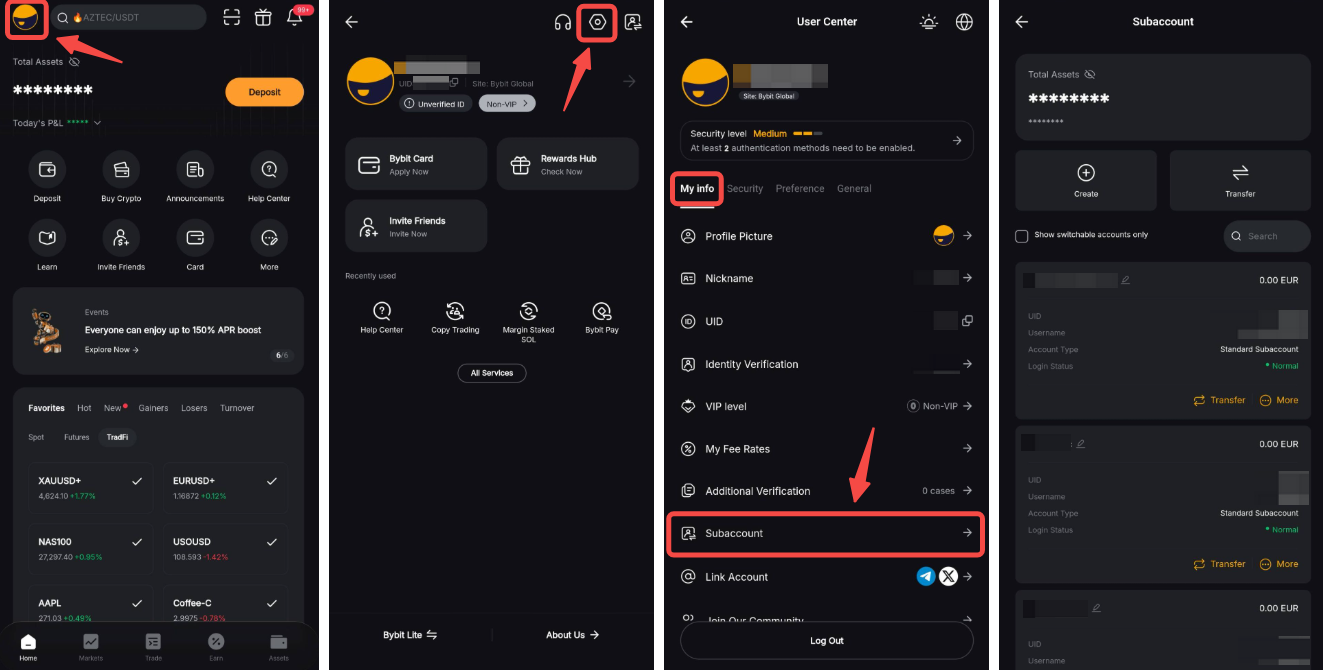
Step 1: On the Bybit App homepage, tap on your Profile icon in the top left corner and go to Settings → Subaccount → Create.
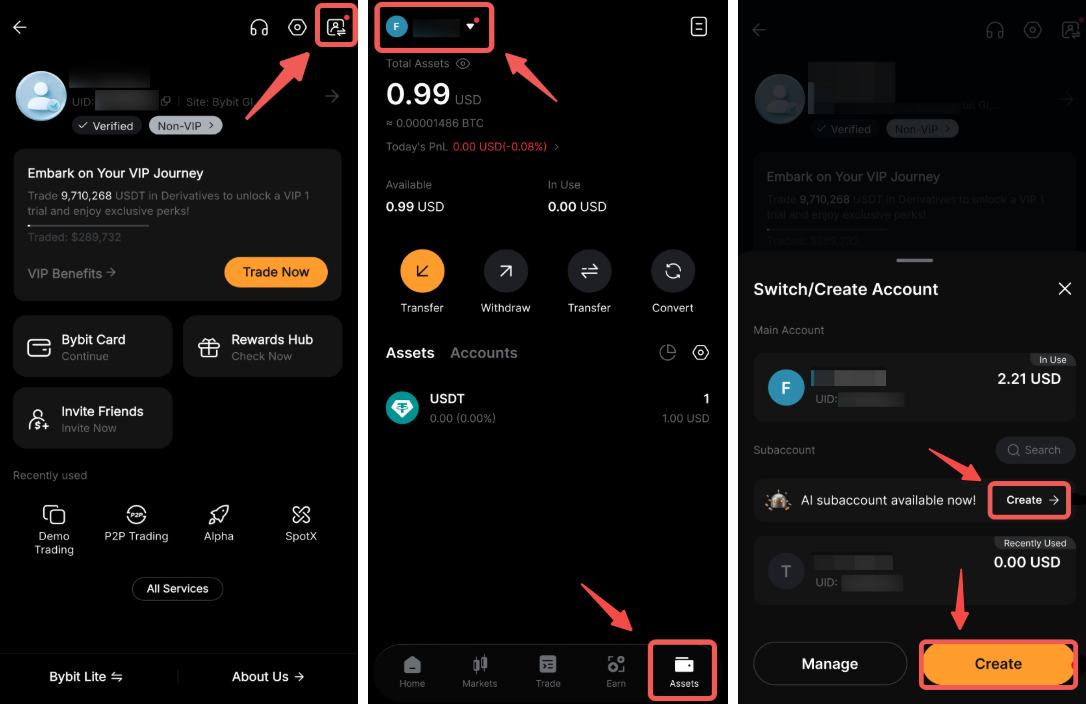
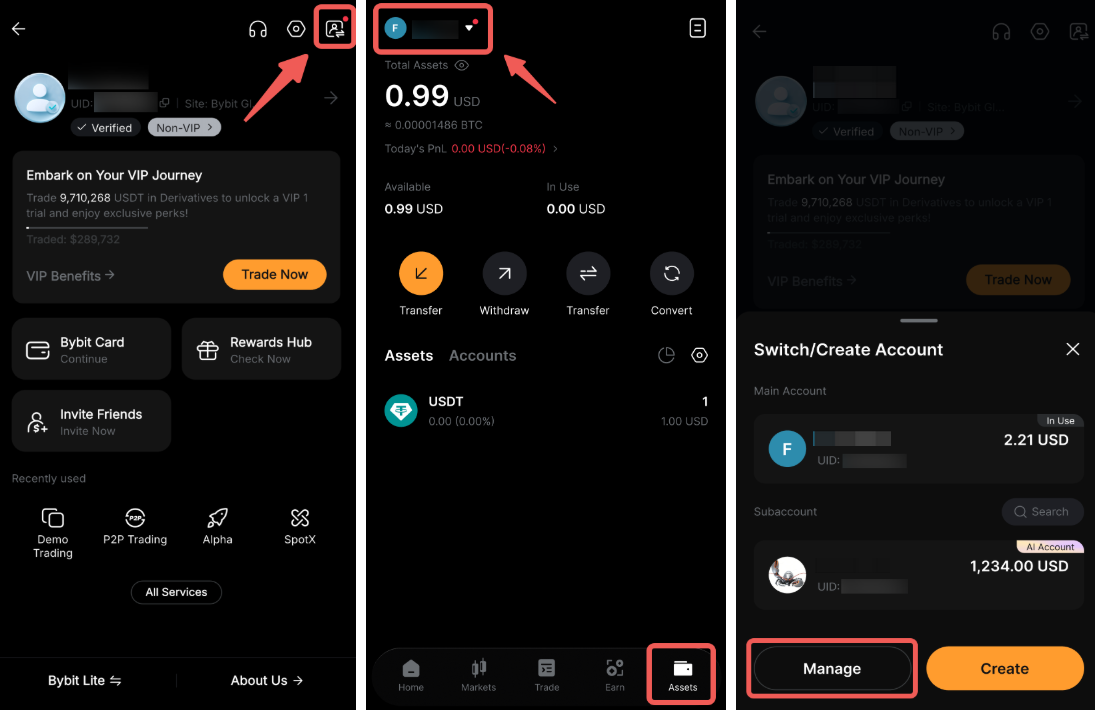
You can also create a subaccount using the Account Switch feature, available on the Account Info and Assets pages. To create an AI subaccount, simply tab on the Create button in the bottom right corner.
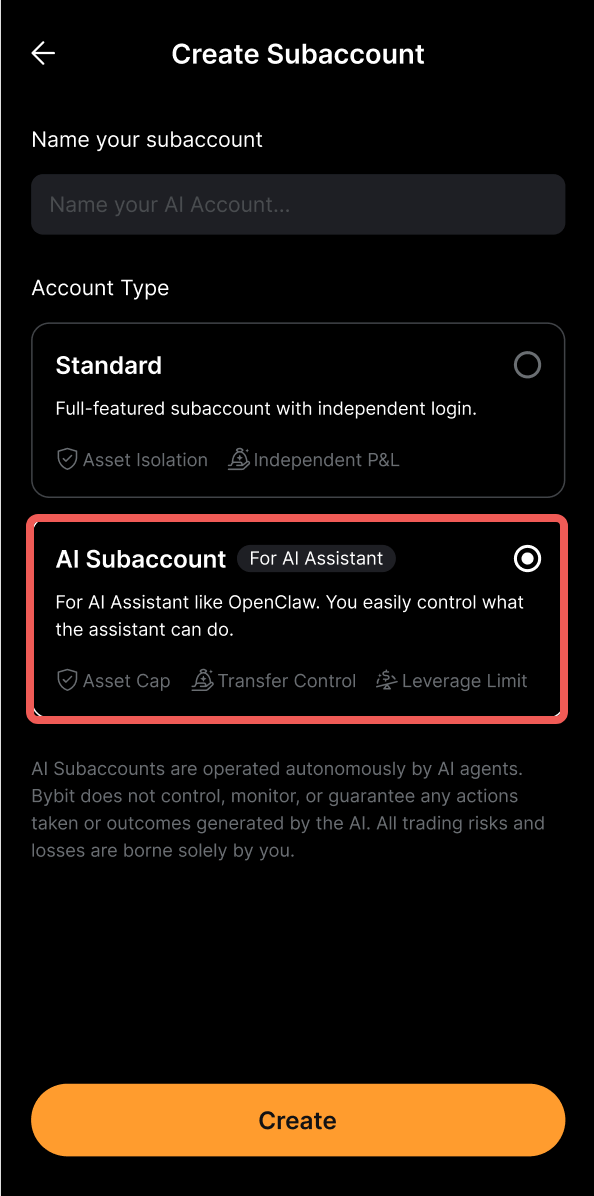
Step 2: Enter the subaccount name and select AI Subaccount, then click on Confirm.
Step 3: Complete the security verification.
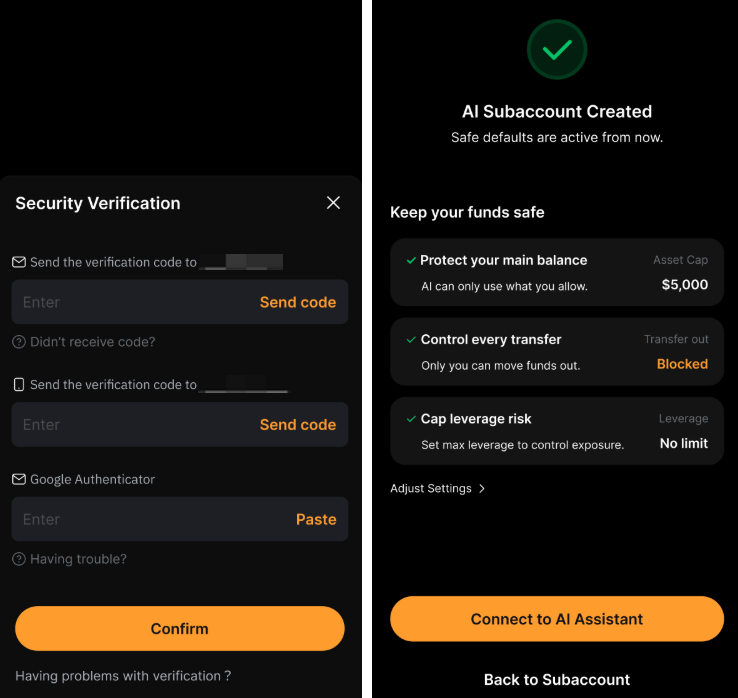
Your AI Subaccount is successfully created!
Set Up Your AI Subaccount
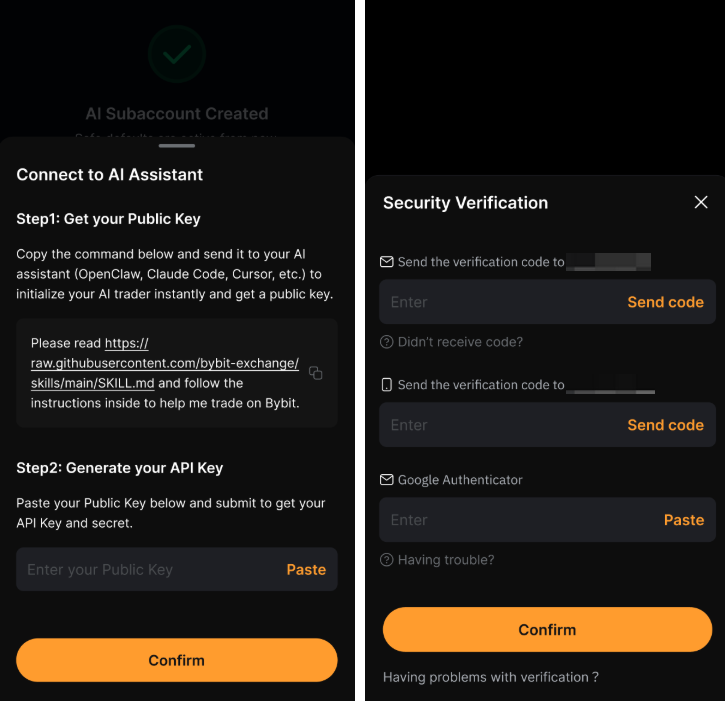
After creating the AI Subaccount, you can connect it to the AI Assistant by following the instructions in the pop-up window.
Get your Public Key by copying the command indicated and sending it to your AI Assistant, e.g, Open Claw, Claude Code, Cursor, etc. Once done, you can generate your API Key by pasting the Public Key to retrieve your API Key and secret.
Once done, click on Confirm and complete the security verification.
The setup has been completed! Your API Key has been generated and is ready to use. Please follow your AI Assistant’s guide to configure your Bybit API Key.
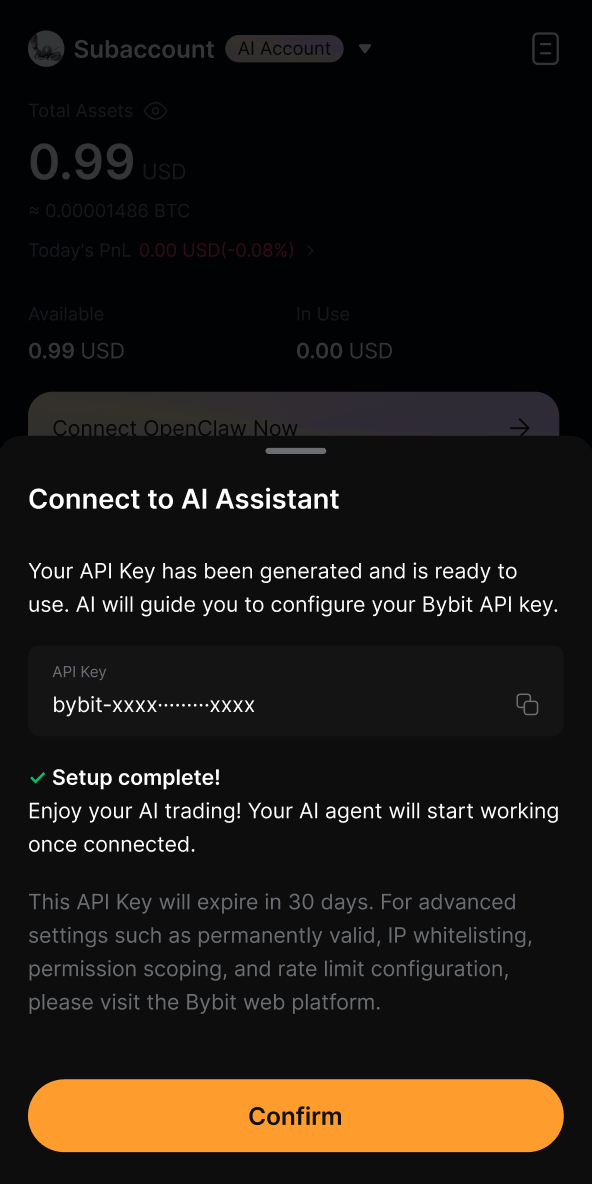
Note: The API Key will expire in 30 days. For advanced settings such as permanently valid, IP whitelisting, permissions scoping and rate limit configuration, please visit the Bybit web platform.
Manage Permissions
After setting up your AI Subaccount, you can manage its permissions. To safeguard your account and API access, please switch to your main account to configure these settings.
Step 1: Once connected to the main account, go to the Subaccount Management page by tapping on your Profile icon in the top left corner and go to Settings → Subaccount.
You can also access the Subaccount Management page using the Account Switch feature, available on the Account Info and Assets pages, and tapping on the Manage button in the bottom left corner.
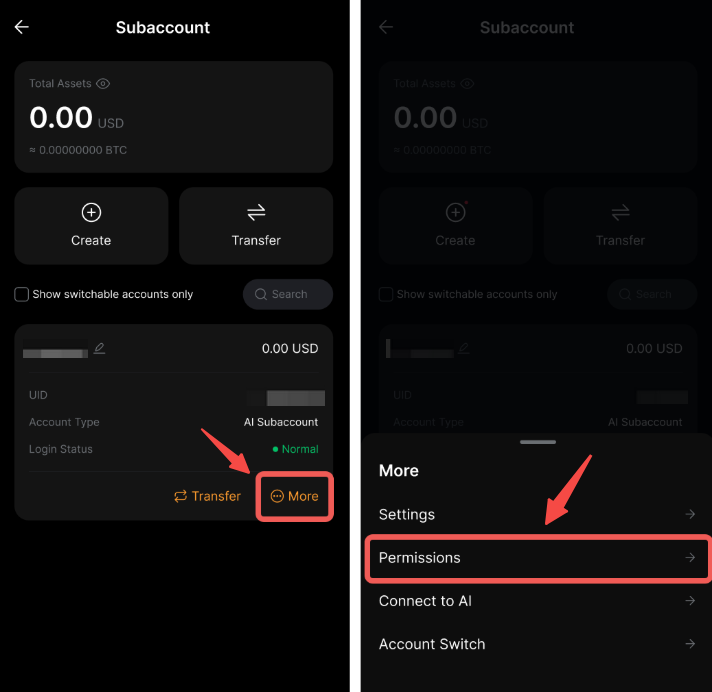
Step 2: Find your AI subaccount and tap on More → Permissions.
Step 3: Manage the permissions for your AI Subaccount.
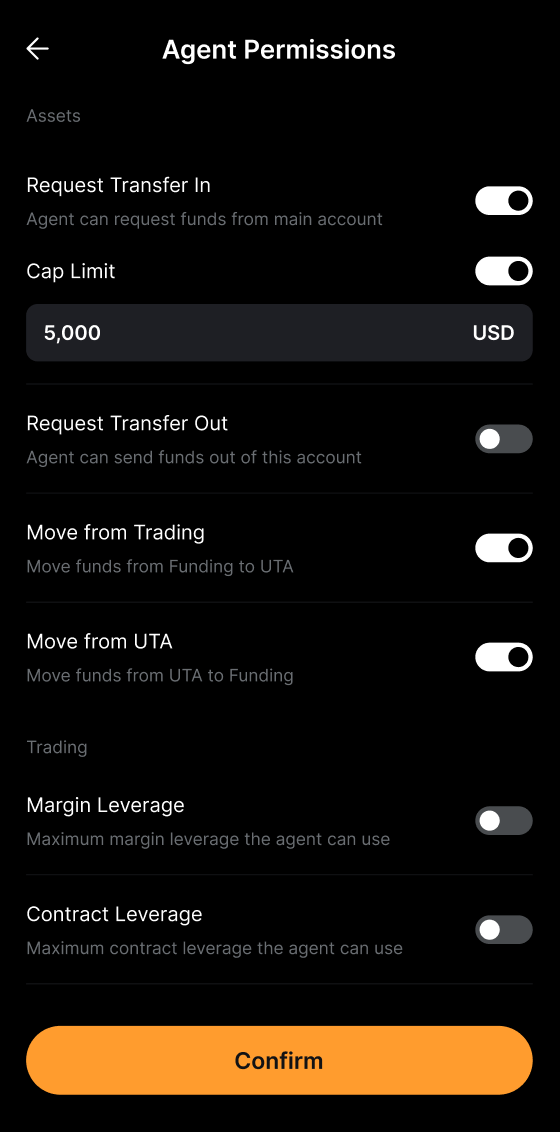
The table below outlines the function of each permission after it is enabled.
You’re all set! You can now start trading by giving commands to your AI Assistant.