The Merchant dashboard on P2P helps you, as an advertiser, to manage your ads and orders more efficiently. It includes the list such as To-dos, Orders, Ads, Market Listings, and the P2P User Centre. However, please note that this feature is currently only available on the website.
This article provides a step-by-step guide and additional information about the key features available on the P2P Merchant Dashboard.
To-dos
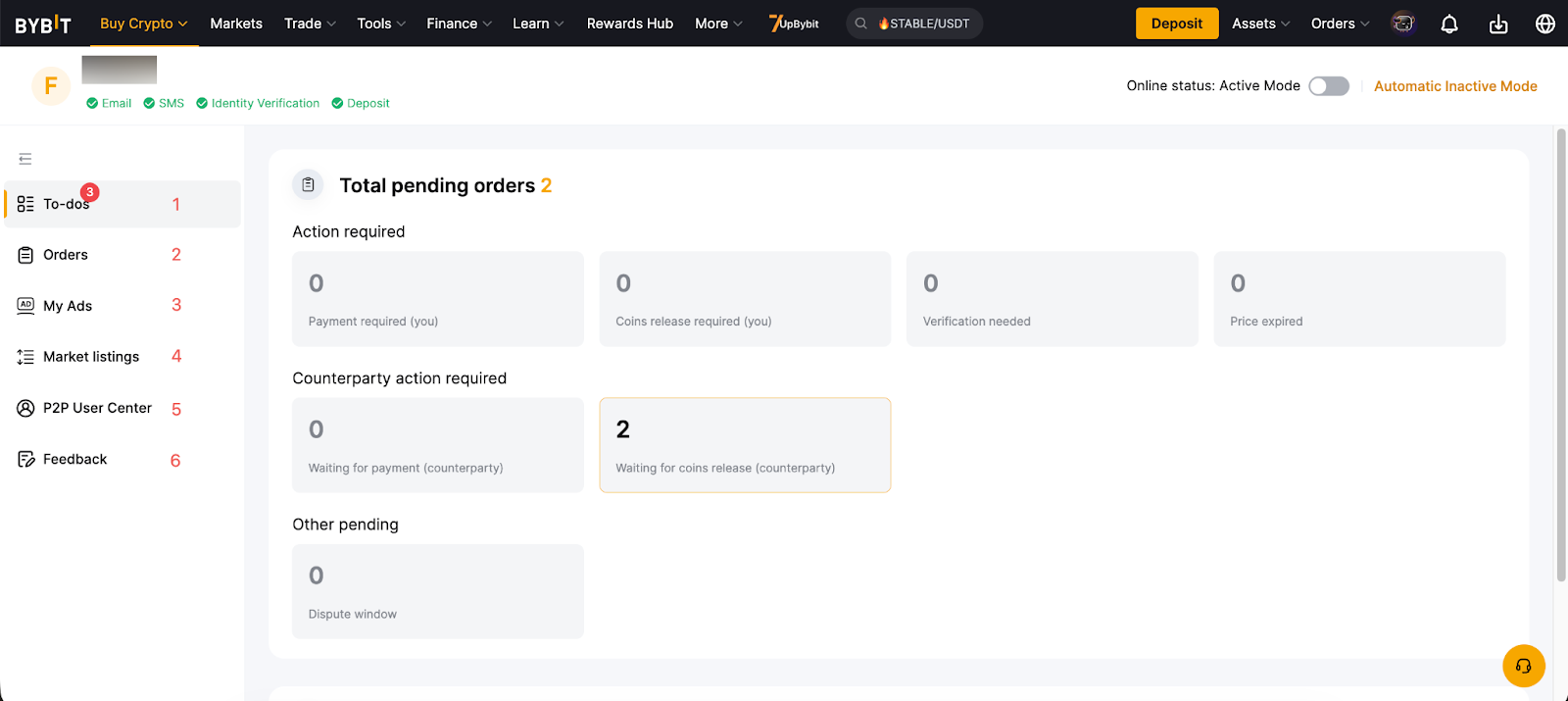
The To-Dos List provides an overview of all pending orders for easier management, including ongoing orders and disputes that require your attention or are awaiting the counterparty’s action. Refer to the table below for a description of each section.
Section | Status/Description |
Total pending orders | Action required | - Payment required
- Coins release required
- Verification needed
- Price expired (For P2P Hotswap orders)
|
Counterparty action required | - Waiting for payment
- Waiting for coins release
|
Other pending | - Dispute window (For Fast Track Appeal that is within the objection period)
|
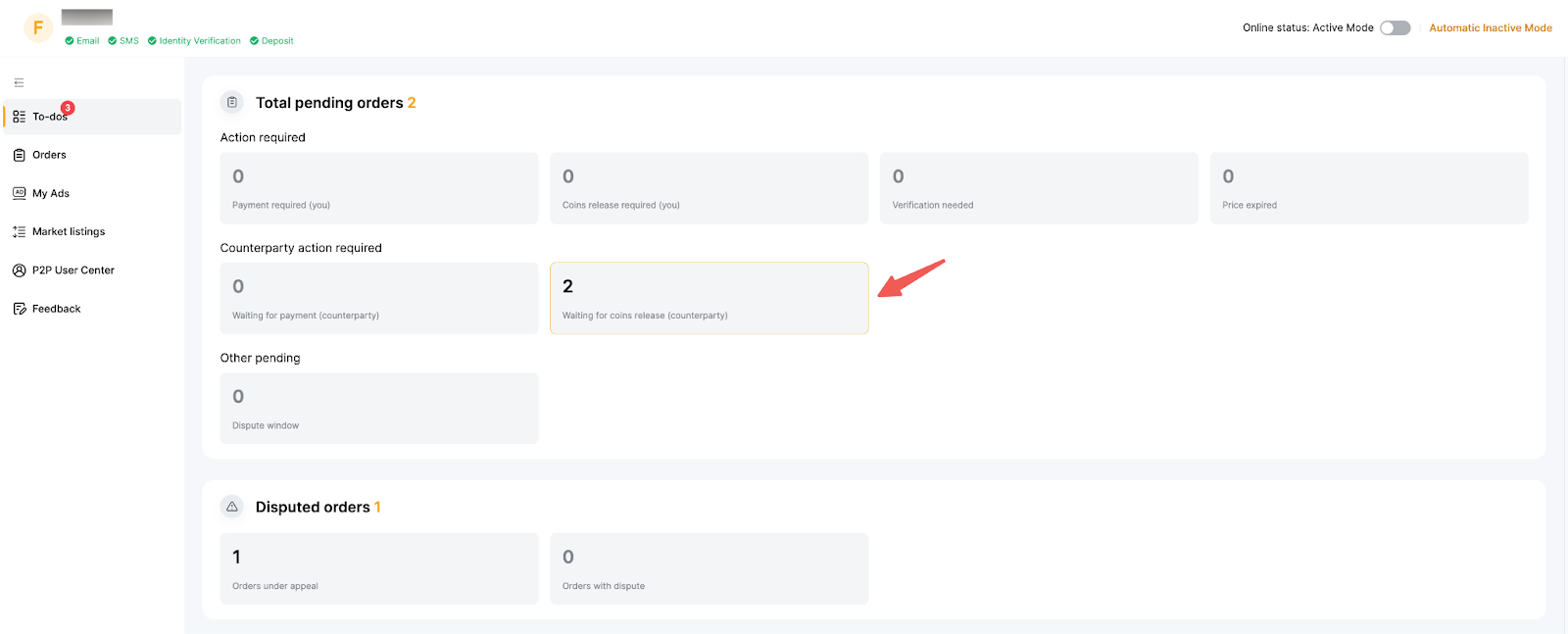
Disputed orders | Orders under appeal | - For orders that are under ongoing or closed order appeals
|
Orders with disputes | - For Fast Track Appeal that are under objection review
|
To view the list of orders in a section, click on the box to enter the order list.
|
Orders
The Orders List enables you to manage all orders. You can use filters such as coin type, direction, status and date range to find orders more easily.
Orders are categorized into 2 types:
a. In Progress: All active orders, including ongoing orders, appeals, or closed order disputes.
b. All: All orders, including active, disputed, completed, or canceled orders.
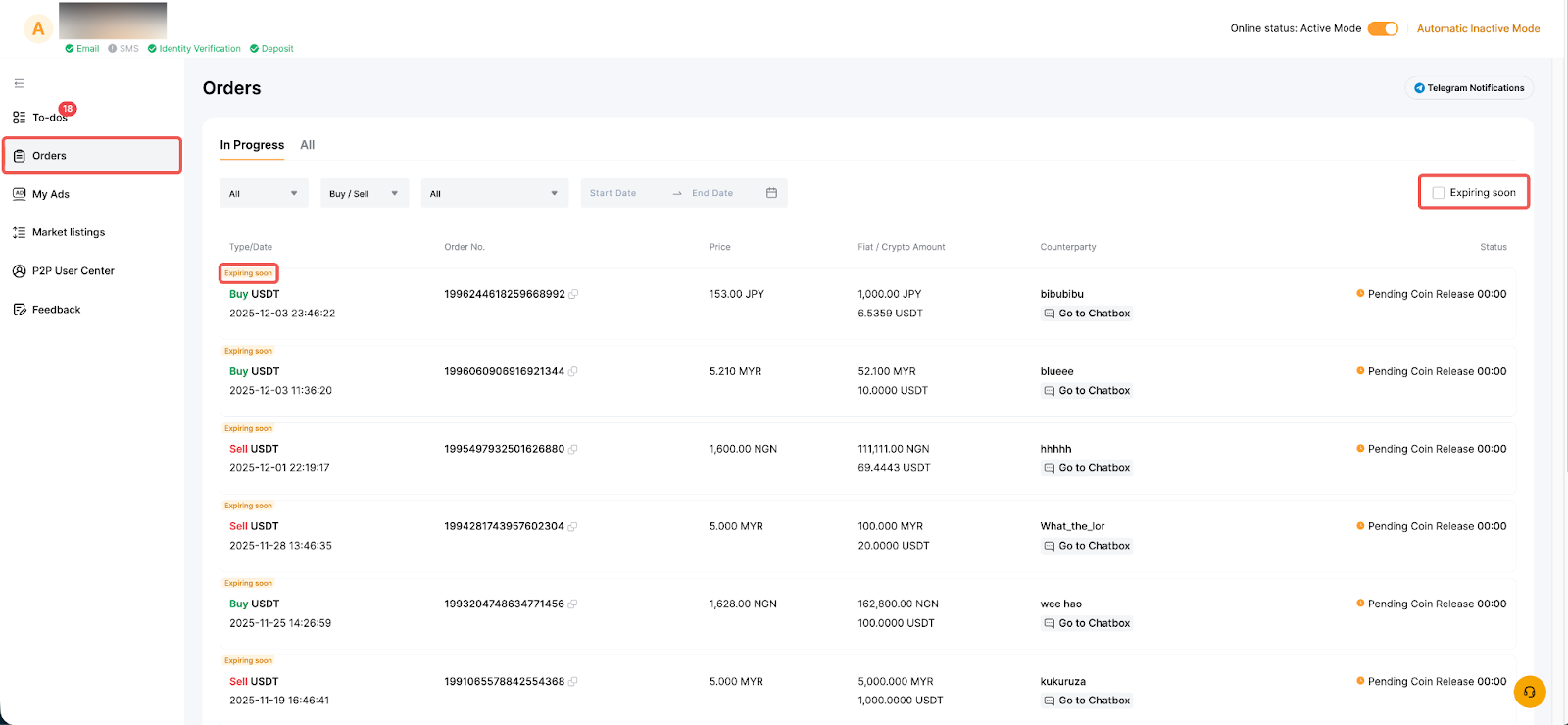
Note: Turn on Timeout Reminder Settings in the P2P User Center to filter and view your “Expiring Soon” orders. See Timeout Reminder Settings for more info.
My Ads
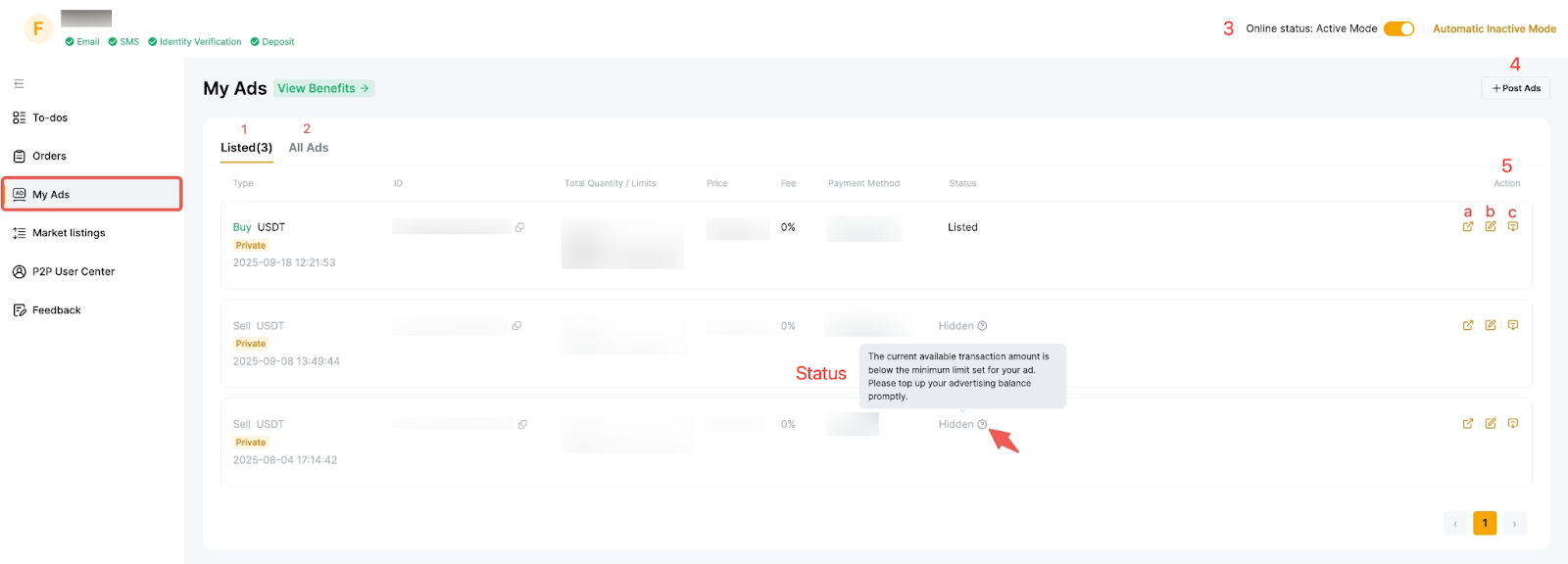
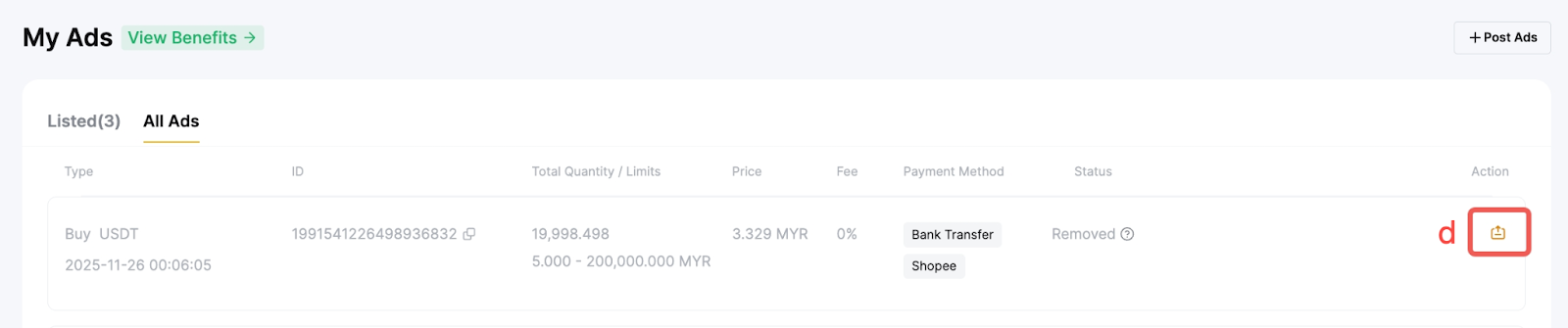
The My Ads List enables you to manage all ads, including active, hidden or removed ads. Refer to the annotated screenshot and the table below to learn more about the supported features.
Feature | Description |
1. Listed Ads that are listed or hidden | Status: If your ad is hidden, you can hover over the Info Tooltip to check the reason. |
2. All ads All ads, including listed, removed and hidden ads. |
3. Online status You can toggle Active Mode on/off to activate or deactivate your ads. | When Active Mode is on, your ads become active and visible to other traders.
When Active Mode is off, your ads are hidden and traders will not be able to place orders.
For more details about Automatic Inactive Mode, please refer to this article. |
4. Post Ads | Go to the ad posting page by clicking the Post Ads button. |
5. Action | a. Share Share your ads via QR code or link so other traders can place orders.
b. Edit Quick edit of your ad price, total quantity and payment method.
c. Remove Deactivate your ads and remove them from the ad list.
d. List After removing an ad, you can reactivate it from the All Ads tab.
|
Market Listings
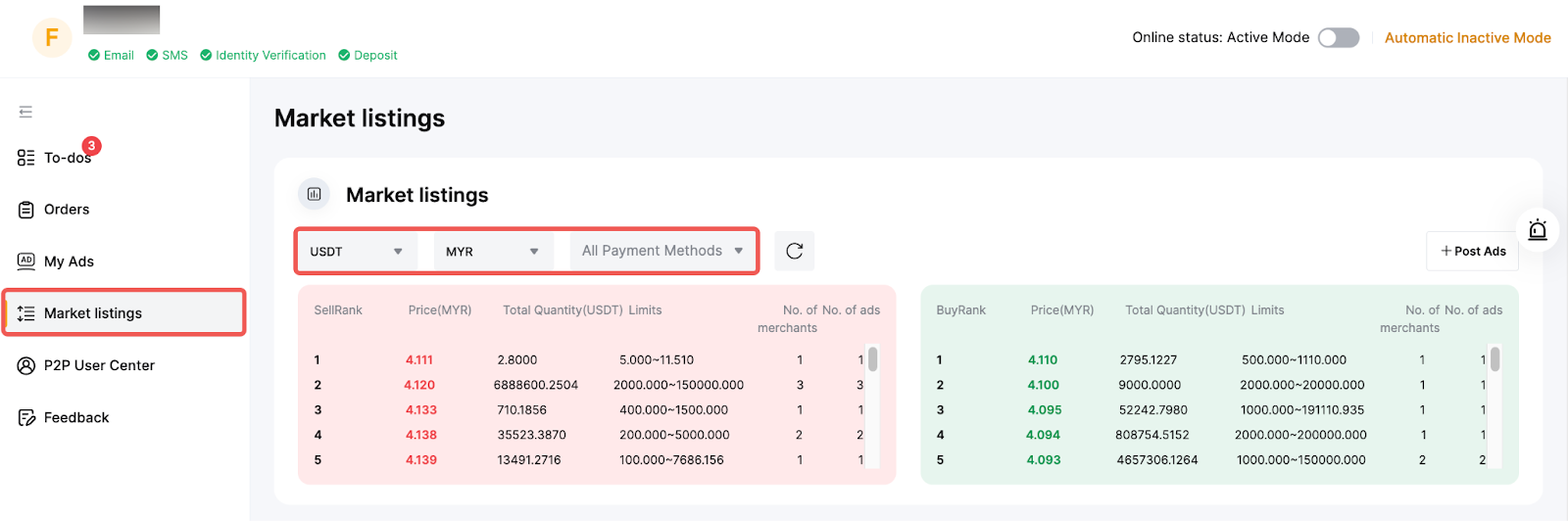
Market Listings help you understand market depth, spot opportunities quickly, and adjust your ad settings to attract more traffic. This feature displays the Top 20 Buy and Sell ads along with the key details, giving you a clear view of current market conditions. To view a specific market condition, you can filter by coin type, fiat currency, and payment methods.
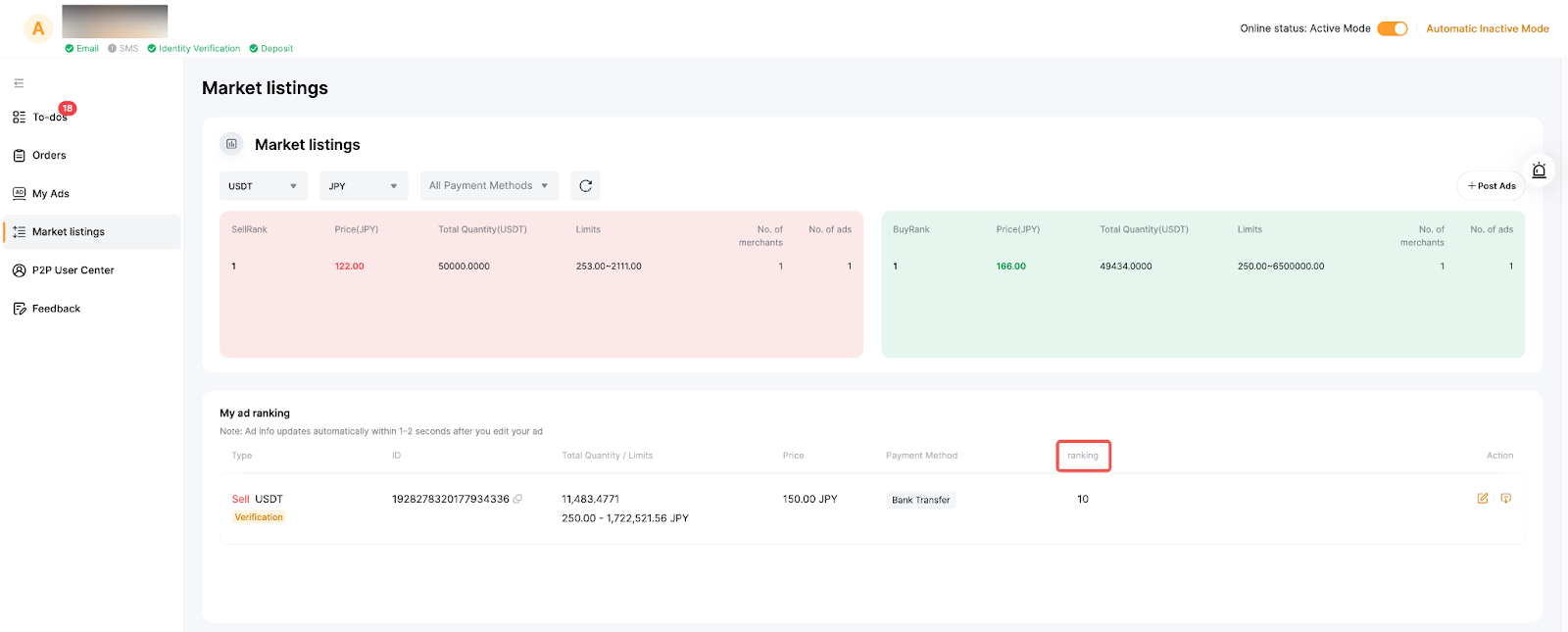
In addition, you can view your active ad ranking on the Market Listings page.
Notes:
- The ranking will be updated 1-2 minutes after the ads are edited.
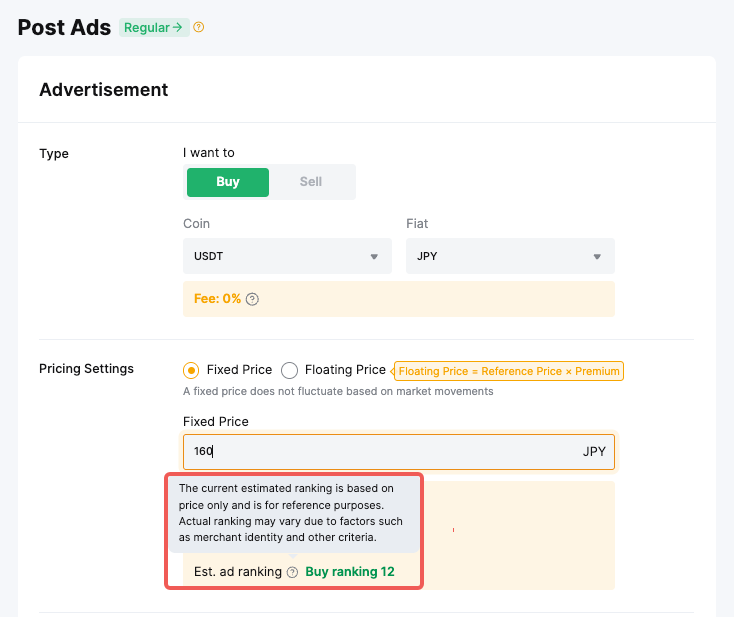
- With this feature, your estimated ad ranking will be displayed during ad posting once you enter the ad price for both buy and sell directions.
- Please note that the current estimated ranking is based on price only and is for reference purposes. Actual ranking may vary due to factors such as merchant identity and other criteria.
P2P User Center
In the P2P User Center, you can view an overview of your trading performance and manage your payment methods, reviews, followings, blacklist, notifications, and timeout reminder settings.
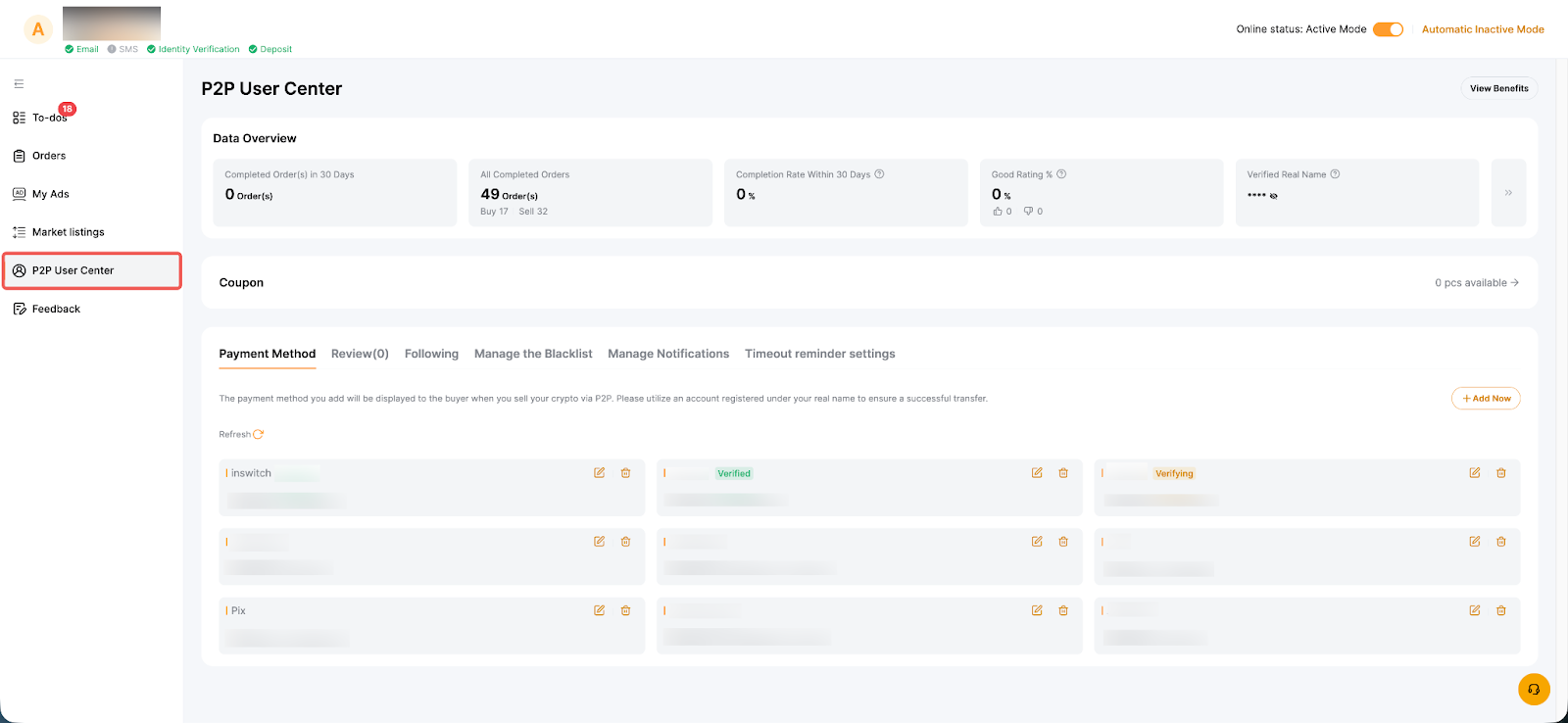
Feature | Description |
Payment method | Add, modify or delete your payment methods here. For payment methods that require verification, you can also check their verification status on this page.
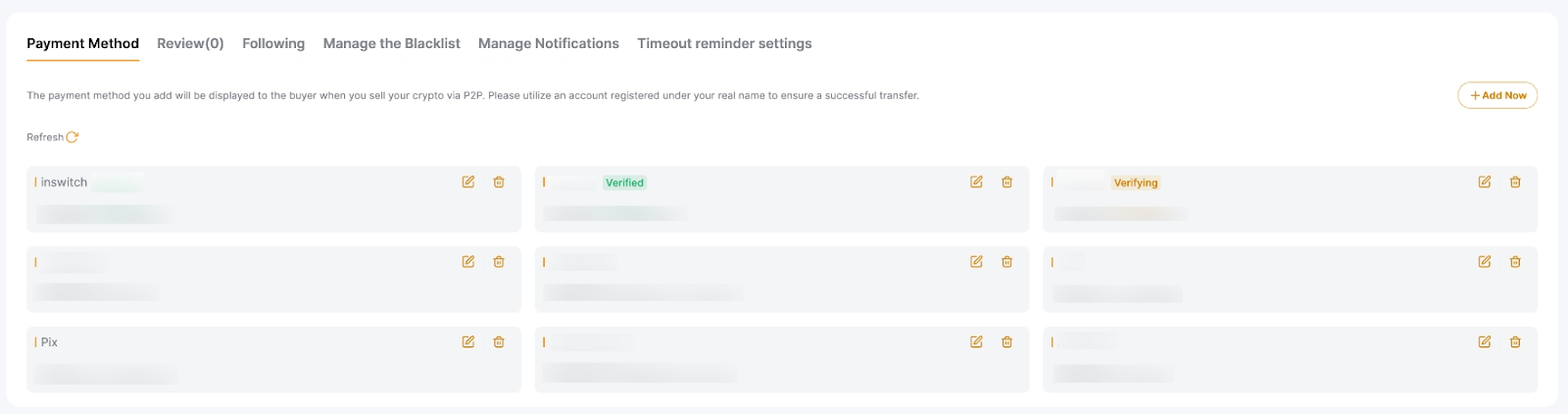
|
Review | Display reviews left by counterparties who have previously traded with you.

|
Following | Show the advertisers you follow and provide the option to unfollow them directly on this page.

|
Manage the Blacklist | Display the traders you’ve blocked with the reason and you can unblock them on this page.

|
Manage Notifications | Manage your P2P notifications and alerts to receive updates on orders and appeals.
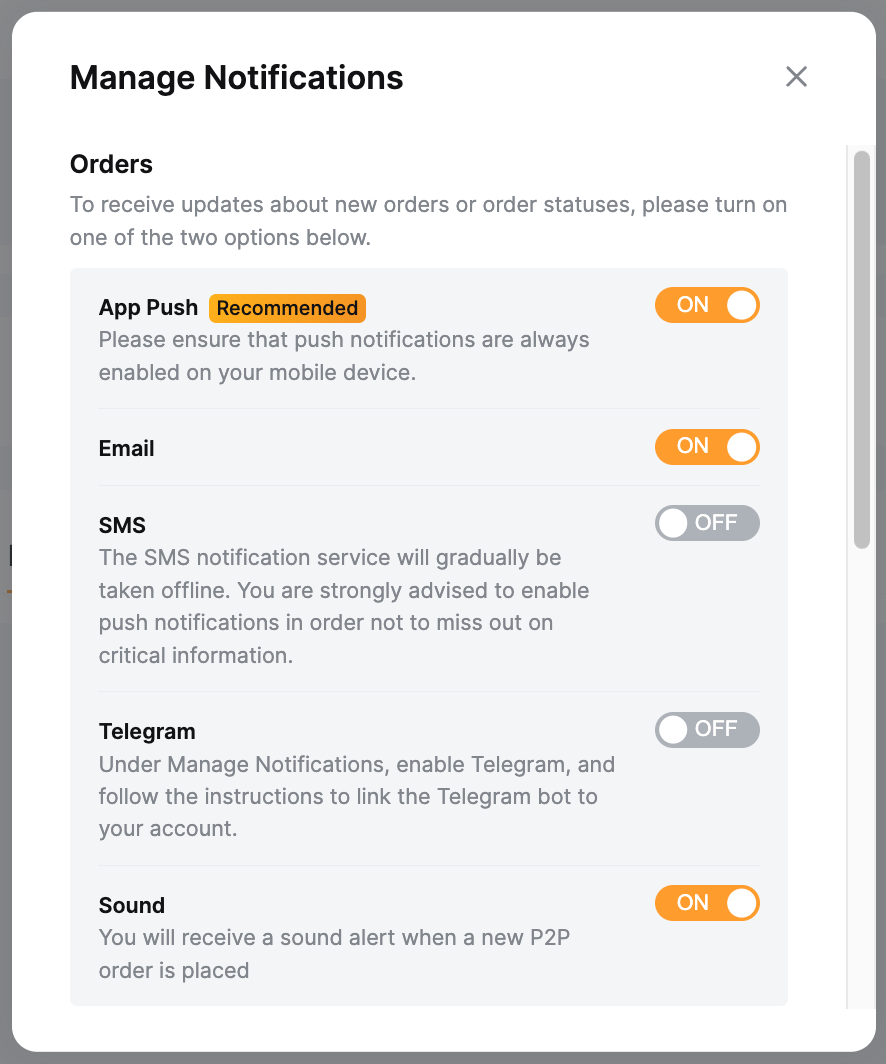
|
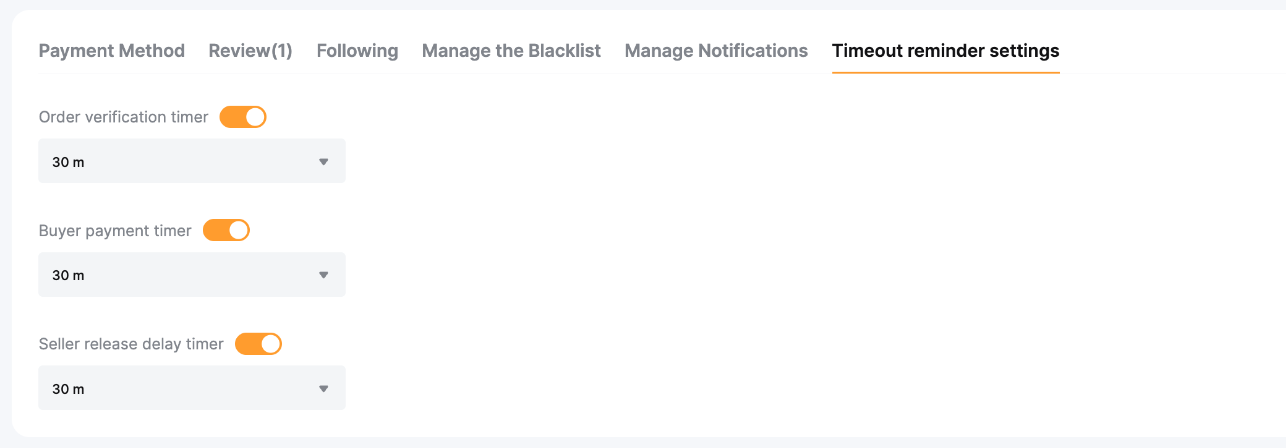
Timeout Reminder Settings | Turn on the timeout reminder to avoid delays in verification, payment, or coin release. You can set the reminder time from 5 to 30 minutes.
After enabling the Timeout Reminder, orders nearing expiration will be labeled as “Expiring Soon” based on your reminder settings. You can filter them by ticking the “Expiring Soon” checkbox.
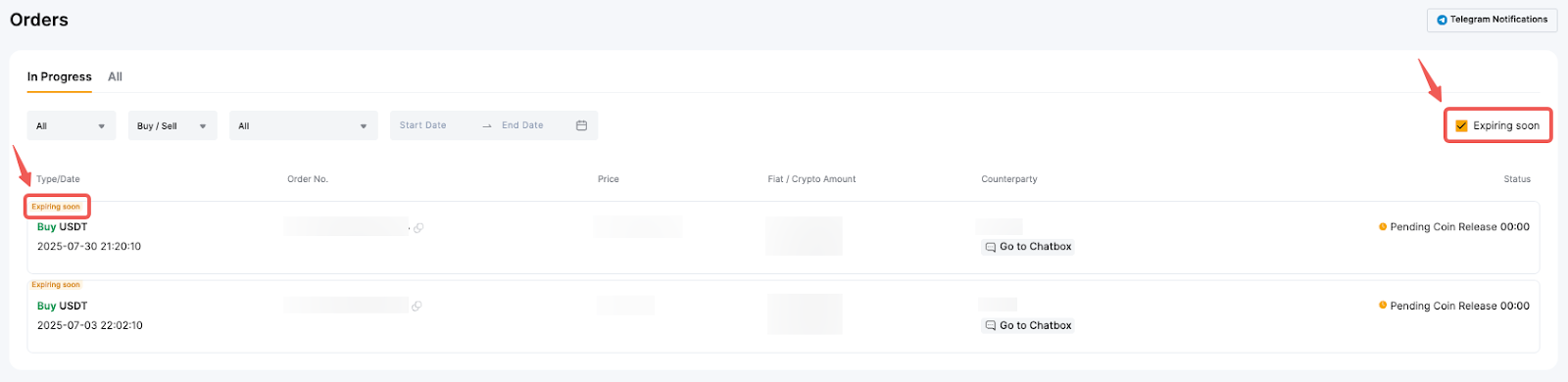
The type of reminders includes: a. Order verification timer Timeout reminder for orders that require verification
b. Buyer payment timer Timeout reminder for orders pending your payment
c. Seller release delay timer Timeout reminder for orders pending your coin release
|
